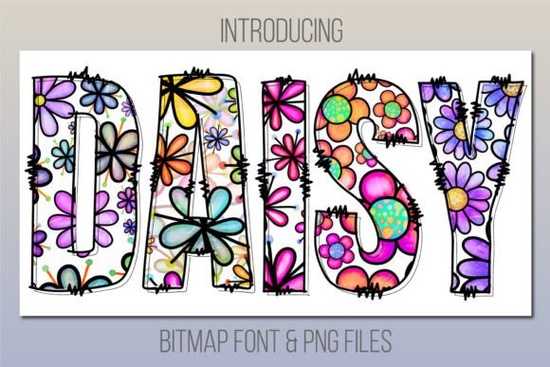
If you are looking to add a splash of springtime cheer to your projects, the Daisy Font is a strong contender. This typeface brings a friendly daisy print color style that instantly lightens the mood of any design. It embodies playfulness and is the perfect choice for pretty much anything that requires a jolly touch. However, before you download, there are some technical details every creator should know. Unlike standard typography, this is a color font, which changes how you install and use it across different platforms.
Many crafters and designers jump into colorful typography without checking compatibility, leading to frustration when letters appear as black blocks. Understanding the difference between bitmap color fonts and standard outline fonts is crucial for a smooth workflow. This guide breaks down exactly what you need to run this software, where it shines brightest, and how to handle it if your preferred tools aren't on the supported list.
Will This Work With My Cutting Machine?
This is the most common question for crafters using devices like Cricut or Silhouette. The short answer is no. Because this product is a Color Font (bitmap font), it is NOT compatible with Cricut Design Space or similar cutting machine software that relies on vector outlines. These machines need single-color layers to know where to cut or draw, and bitmap fonts embed color information directly into the glyph shape in a way these programs cannot read yet.
If your main workflow revolves around vinyl cutting or heat transfer projects using design space apps, you might need to look for standard outline versions or use the workaround mentioned later in this article. However, for digital design, print-on-demand, and scrapbooking, this limitation rarely matters. For those who love playful typography but need something compatible with different workflows, you might explore variations like the Spiderweb Army Font colorful fonts listing to see if other styles meet your technical needs.
What Software Do I Need to Use Color Fonts?
To use the native font file, you need specific versions of Adobe Creative Cloud or MacOS applications. The developers have set clear minimum requirements to ensure the color data renders correctly without glitches. Here is the breakdown of compatible programs:
- PhotoShop: CC 2017 or newer
- Illustrator: CC 2018 or newer
- InDesign: CC 2019 or newer
- MacOS Apps: Fontbook, Pages, and Keynote
If you are running older versions of these programs, the font will likely install but appear as a solid black silhouette. Updating your software is often the easiest fix. Once updated, you can type normally, and the daisy patterns will fill the letters automatically. You can view the full character set and technical specifications at the Daisy Font colorful fonts directory to ensure your system matches the requirements before purchasing.
What If I Don't Have Adobe Creative Cloud?
Not everyone has a subscription to Adobe, and that is completely fine. The creator included a thoughtful solution for users with different software setups. Inside the download folder, you will find Bonus Files containing PNGs of the alphabet and numbers. These images can be used in almost any design program, including Canva, PowerPoint, or free alternatives like GIMP.
Using the PNGs is slightly different than typing with a font. Instead of typing text, you will drag and drop individual letter images onto your canvas. This method gives you full control over kerning and placement, allowing you to create custom ligatures or stack letters creatively. While it takes a bit more time than typing, it ensures you can still achieve the colorful daisy look without upgrading your software. For reference on how color fonts are typically structured, you can check the official Daisy Font search page for updates.
Where Does This Style Fit Best?
The playful nature of this typeface makes it ideal for projects targeting children, spring seasons, or cheerful branding. It is not suitable for corporate documents or serious legal text, but it excels in casual environments. Consider using it for:
- Greeting Cards: Birthday invites or spring-themed thank you notes.
- Print on Demand: T-shirts, mugs, and tote bags aimed at kids or garden lovers.
- Social Media Graphics: Instagram stories or Pinterest pins that need to pop.
- Scrapbooking: Digital layouts that require a handcrafted, joyful feel.
When using this for print-on-demand, remember to save your final design as a high-resolution PNG with a transparent background. This ensures the colors remain vibrant when printed on fabric or ceramic. Since the font itself carries the texture, you do not need to add extra overlays, which saves time during the design process.
Practical Checklist Before You Start
To avoid headaches during your design session, run through this quick verification list. It ensures you have everything ready to go before you begin creating.
- Check Software Version: Verify your Photoshop or Illustrator is updated to the minimum CC versions listed above.
- Install Correctly: On Mac, use Fontbook. On Windows, right-click the font file and select "Install for all users."
- Test a Letter: Open a test document and type "A" to see if the color renders before starting a large project.
- Locate PNGs: Find the bonus folder immediately so you know where it is if the font fails to load.
- Export Settings: When saving for web or print, choose PNG-24 to preserve the transparency and color depth.
Taking these small steps ensures that the playful vibe of the design comes through without technical interruptions. Whether you are a small business owner making logos or a hobbyist making party invites, preparation is key to enjoying the creative process.
Learn More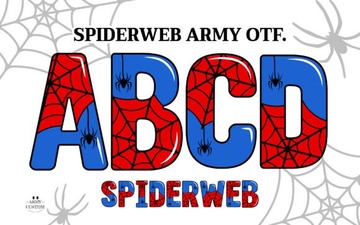 Design Projects Using Spiderweb Army Font
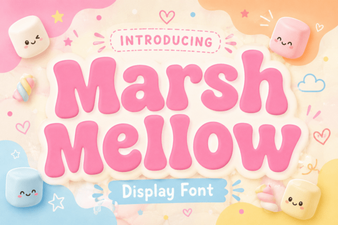 Get Creative with the Marshmellow Font
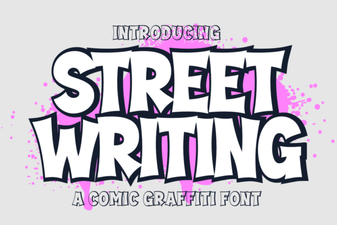 Modern Street Writing Fonts for Design Projects
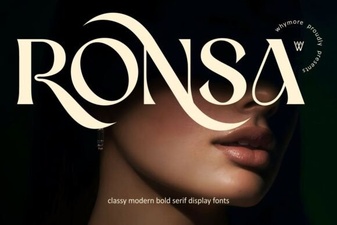 Ronsa Font: Creative Typography for Modern Design
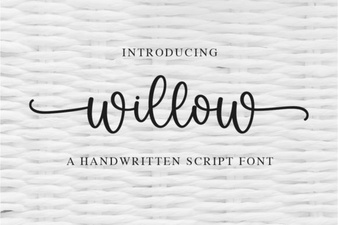 Willow Font: Free Modern Calligraphy Style for Designers
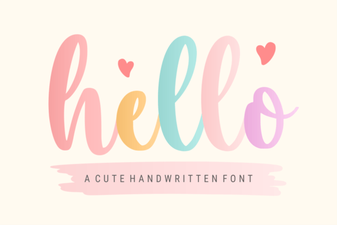 Hello Font: Craft Elegant Typography for Your Designs